ML Mode
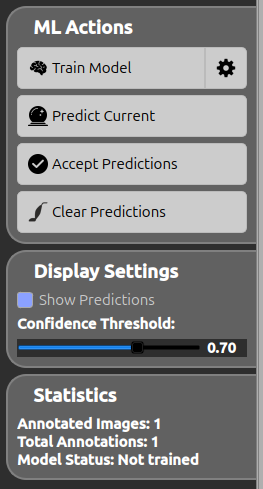
ML Mode trains a machine-learning model on the labels you have already drawn, then uses it to predict annotations on new images. You switch to it from the Switch to ML Mode button in the labeling bar. The left sidebar is then replaced by the ML panel, organized in three sections: ML Actions, Display Settings and Statistics.
ML Actions
| Icon | Action | Description |
|---|---|---|
 | Train Model | Train the model on the current annotations. The gear button next to it opens the ML Training Settings dialog (see below). At least one annotated image is required. |
 | Predict Current | Generate predictions for the image currently displayed. Requires a trained model. The predictions use the confidence threshold from the Display Settings. |
 | Accept Predictions | Convert the current predictions (bounding boxes and/or segmentation) into permanent annotations. |
 | Clear Predictions | Remove all predictions from the current image without accepting them. |
Display Settings
| Control | Range | Description |
|---|---|---|
| Show Predictions | on / off | Toggle the visibility of the predictions overlaid on the image. |
| Confidence Threshold | 0.10 – 1.00 | Minimum confidence a prediction must reach to be shown. Adjusting it refreshes the predictions of the current image live. |
Statistics
A read-only summary of the current annotation state, used to know whether you have enough data to train:
- Annotated Images — number of images that contain at least one annotation.
- Total Annotations — total count across all images (geometric shapes + painted instances).
- Model Status — Not trained or Trained ✓.
ML Training Settings
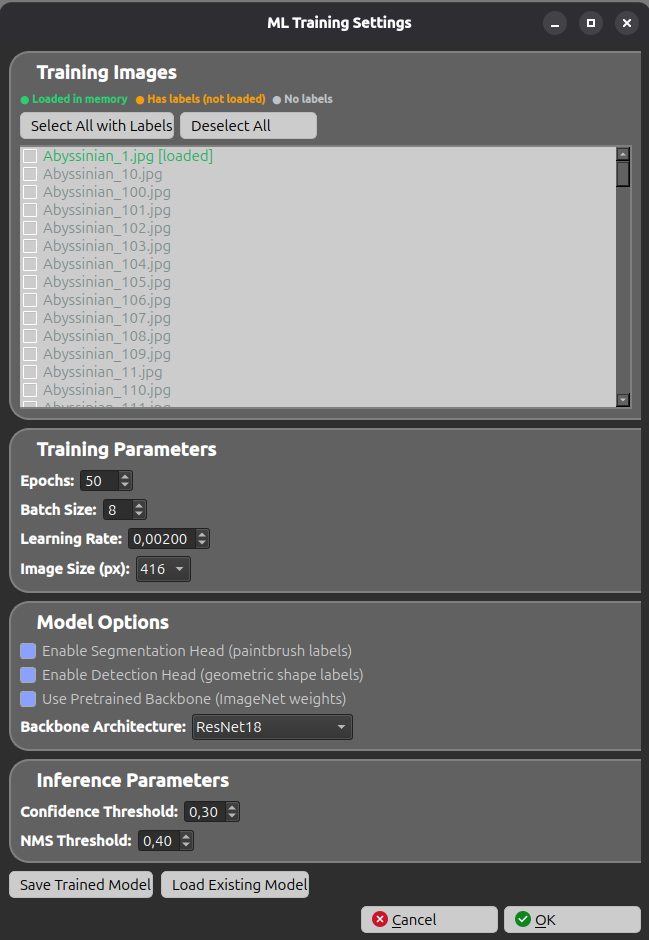
The gear button next to Train Model opens the ML Training Settings dialog. It is divided into five parts.
Training Images
Choose which images are used for training. Each image has a checkbox and a color code:
- 🟢 Loaded in memory — the image is loaded and ready.
- 🟠 Has labels (not loaded) — the image has annotations but is not loaded yet (it will be loaded automatically before training).
- ⚪ No labels — the image has no annotations.
Two helpers are available: Select All with Labels and Deselect All.
Training Parameters
| Parameter | Range | Default | Description |
|---|---|---|---|
| Epochs | 1 – 500 | 50 | Number of training passes over the data. More epochs = better accuracy but slower. |
| Batch Size | 1 – 64 | 8 | Number of images processed per training step. Reduce it if you run out of memory. |
| Learning Rate | 0.00001 – 0.1 | 0.002 | Step size of the optimizer. Lower = more stable but slower. |
| Image Size (px) | 224, 320, 416, 512, 640 | 416 | Resolution the images are resized to for training. Larger = more detail but slower. |
Model Options
| Option | Default | Description |
|---|---|---|
| Enable Segmentation Head (paintbrush labels) | on | Train a segmentation head from painted pixel annotations. Disable it if you only use geometric shapes. |
| Enable Detection Head (geometric shape labels) | on | Train an object-detection head from rectangle / ellipse / polygon annotations. |
| Use Pretrained Backbone (ImageNet weights) | on | Start from ImageNet pretrained weights. Strongly recommended unless your images are very unusual. |
| Backbone Architecture | ResNet18 | The feature extractor used for detection and segmentation (ResNet, MobileNet, EfficientNet, ViT, Swin, ConvNeXt, RegNet, DenseNet, MaxViT…). Changing it invalidates any previously saved model; large models need a GPU. |
Inference Parameters
| Parameter | Range | Default | Description |
|---|---|---|---|
| Confidence Threshold | 0.01 – 1.00 | 0.30 | Minimum confidence for a prediction to be kept during inference. |
| NMS Threshold | 0.01 – 1.00 | 0.40 | Non-Maximum Suppression threshold — controls how much overlapping detection boxes are merged. |
Save / Load Model
- Save Trained Model — export the trained model to a file for later reuse.
- Load Existing Model — load a previously saved model instead of training from scratch.
Example
As an example, we use the Oxford-IIIT Pet Dataset and train the model only on the painted labels of the Abyssinian cat breed — 100 labeled images are used for training.
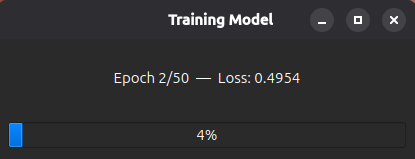
1. Train the model. After selecting the images in the ML Training Settings and clicking Train Model, a progress bar shows the training in progress (current epoch and loss):
2. Predict on a new image. Once training is finished, clicking Predict Current on a new image produces the segmentation below — the model highlights the Abyssinian cat it has learned to recognize:
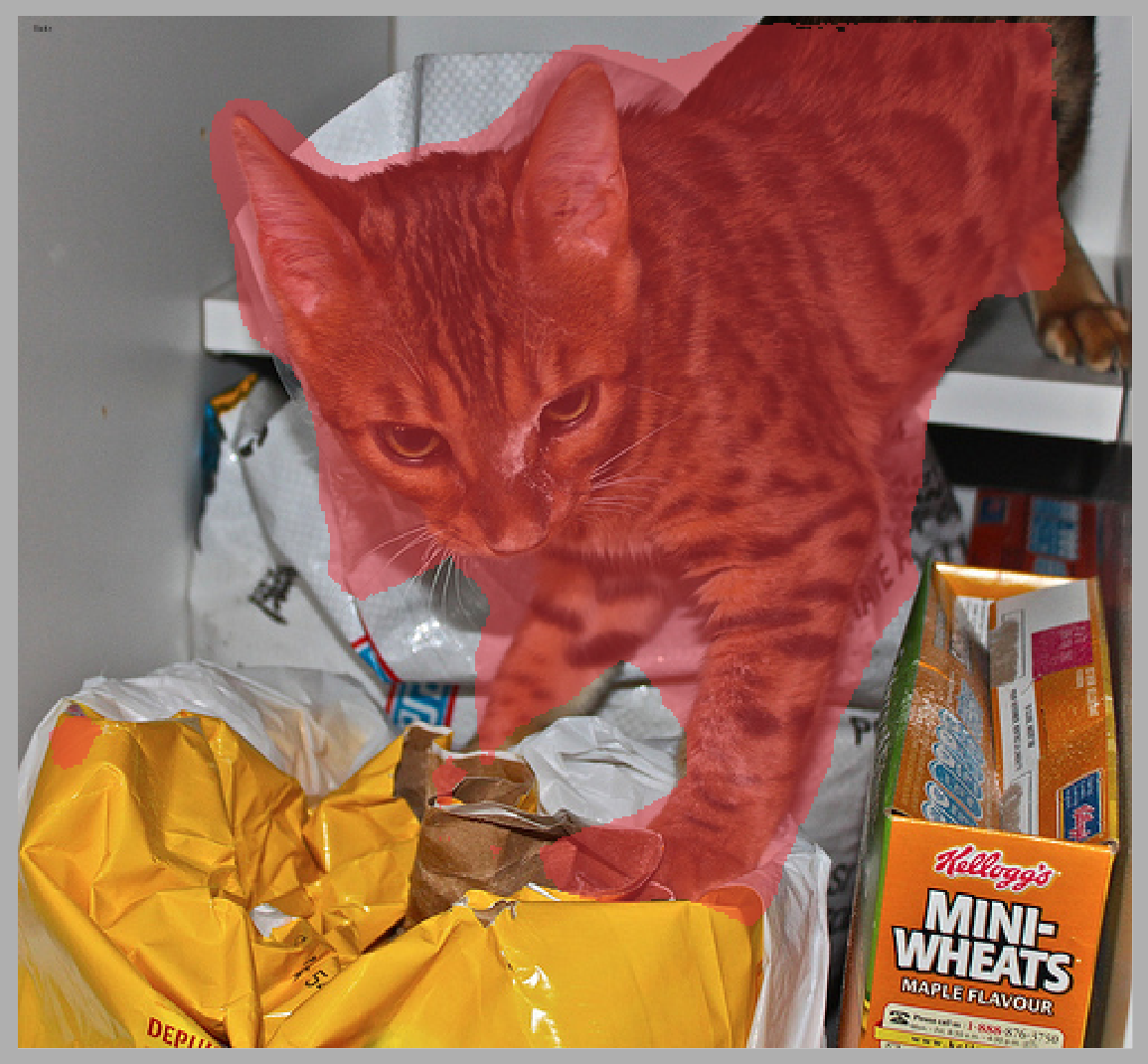
You can then click Accept Predictions to turn this prediction into a permanent annotation, or Clear Predictions to discard it.