Pixel-by-Pixel
Pixel-by-pixel tools paint the label directly onto the image, pixel by pixel, on the overlay of the active label. The Pixel-by-pixel section of the labeling bar provides three tools, each with its own settings dialog (the gear button next to the tool).
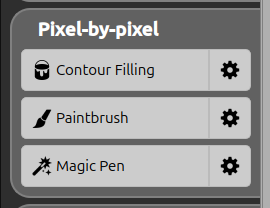
| Icon | Tool | Shortcut | Description |
|---|---|---|---|
 | Contour Filling | F | Detect the contours in the image and fill an enclosed area in a single click. |
 | Paintbrush | B | Paint the label freehand with a brush of a chosen shape and size. |
 | Magic Pen | M | Fill a region by selecting pixels of a similar color to the one clicked. |
Contour Filling
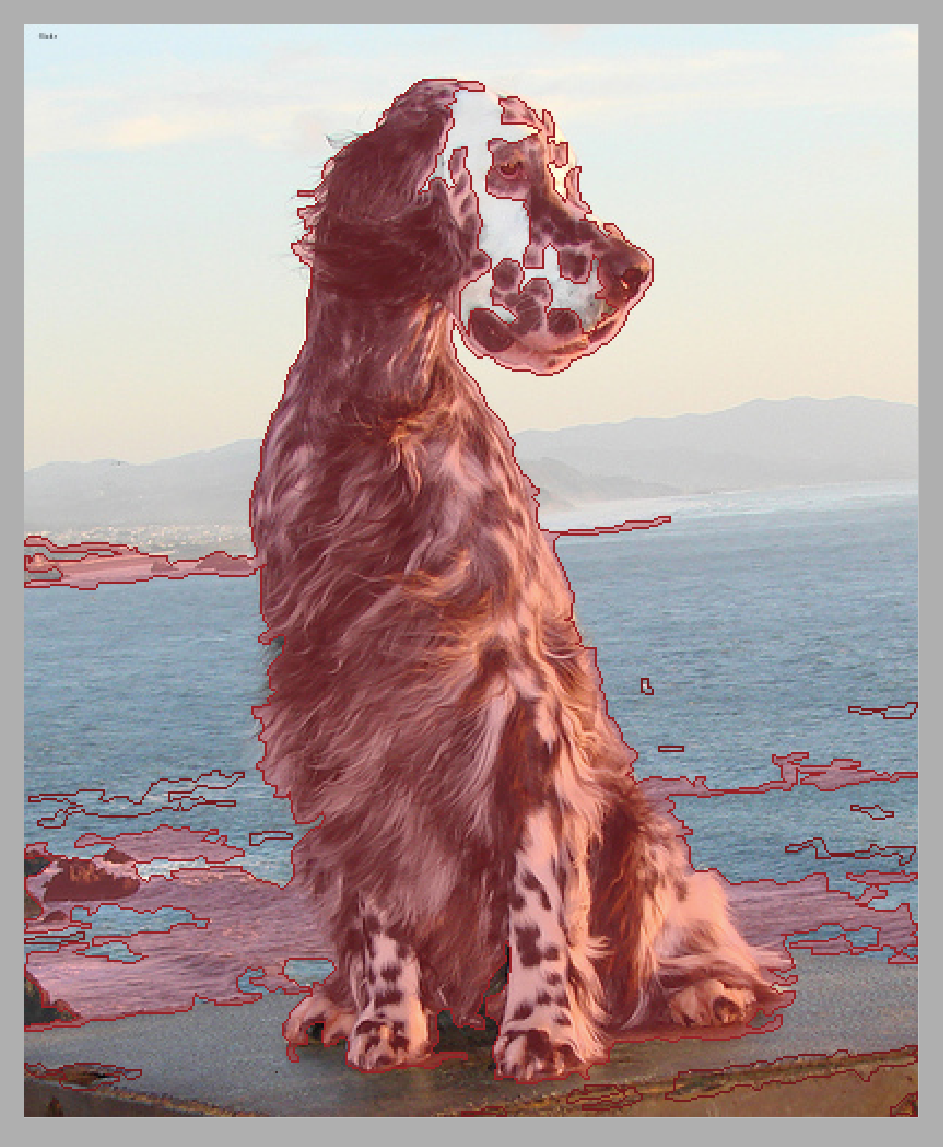
When activated, Contour Filling analyzes the image to detect its contours (edge detection). The detected contours are previewed on top of the image, and an Apply / Cancel bar appears. Click inside an enclosed area to fill it with the active label’s color, then apply.
Settings:
| Parameter | Range | Description |
|---|---|---|
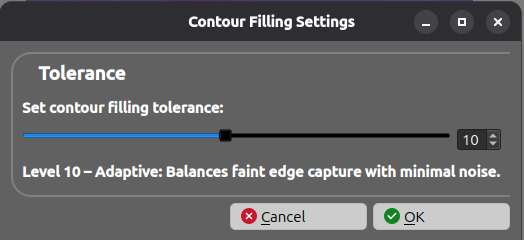
| Tolerance | 1 – 20 | Controls how sensitive the contour detection is. A low level (e.g. 1) detects only strong, clean, well-defined edges (ultra precise). A high level (e.g. 20) captures faint and fragmented edges (maximum tolerance), at the cost of more noise. Each level shows a short description (e.g. Level 10 – Adaptive: Balances faint edge capture with minimal noise). |
Paintbrush
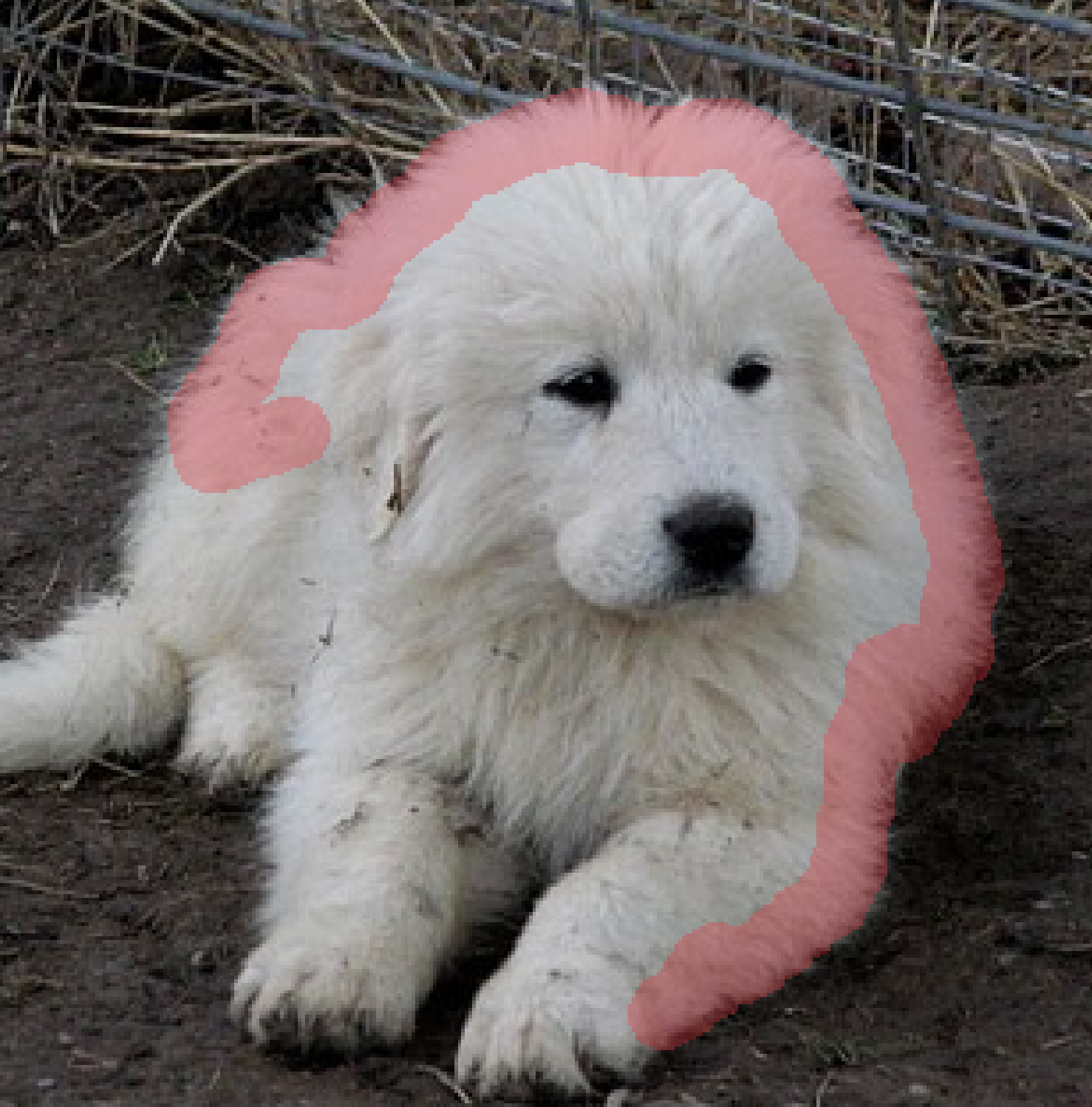
The Paintbrush paints the active label freehand: hold the mouse button and drag over the image to color pixels with the label’s color.
Settings:
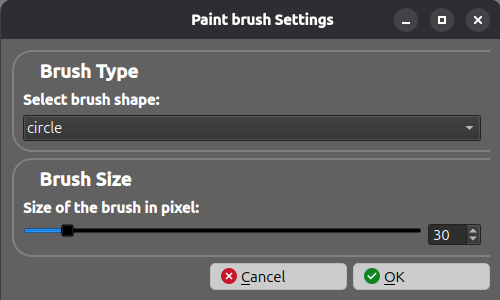
| Parameter | Range / Options | Description |
|---|---|---|
| Brush Type | circle, square, diamond, star, triangle, cross, x, hexagon, spray, soft | The shape of the brush used to paint. |
| Brush Size | 1 – image size (pixels) | The size of the brush in pixels. The maximum is bounded by the dimensions of the current image. |
Tip: If you draw a closed shape with the Paintbrush, you can fill it directly.
Magic Pen
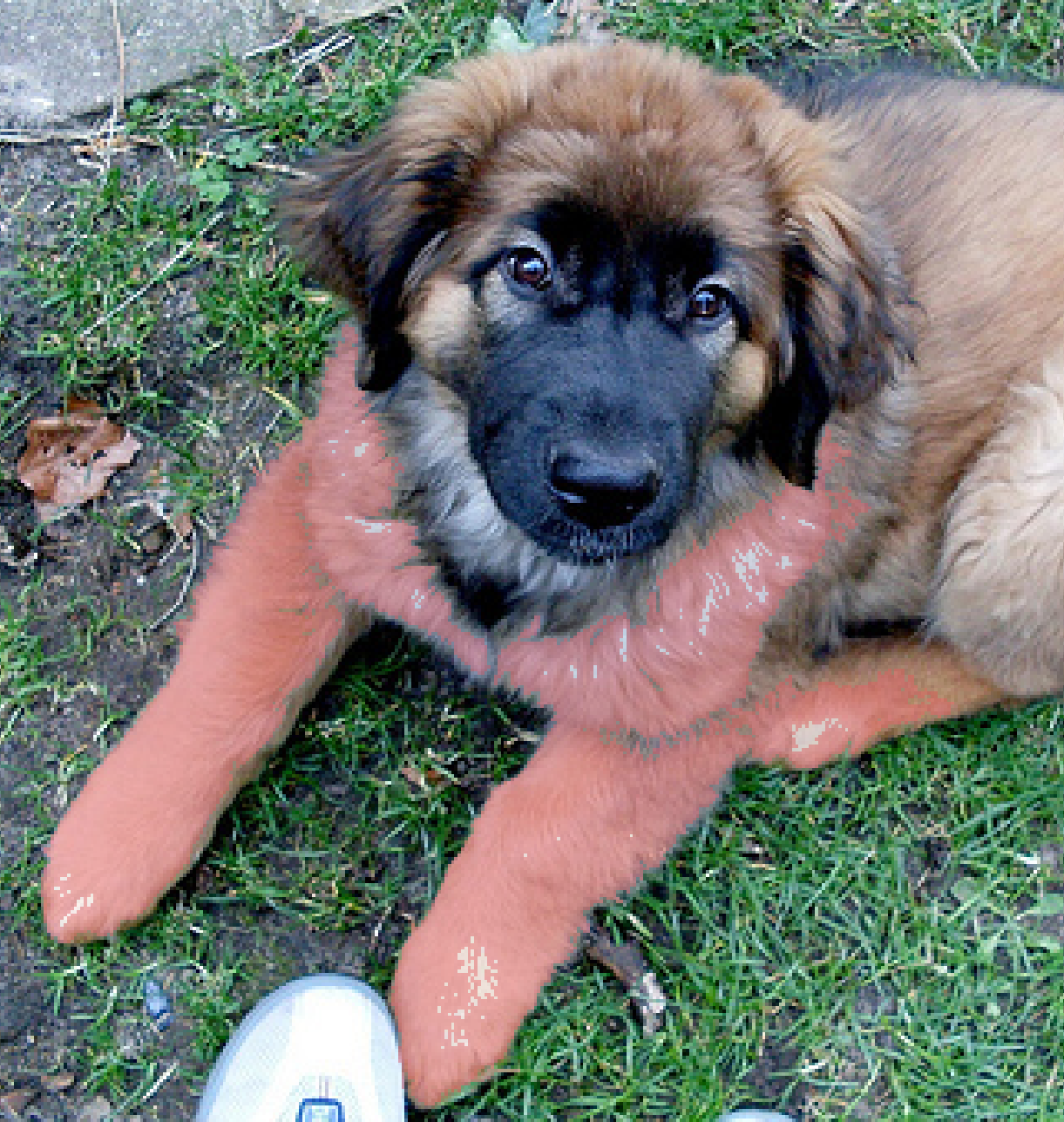
The Magic Pen fills a region by comparing pixel colors: click on a pixel, and all neighboring (or all) pixels whose color is close enough to it are colored with the active label.
Settings:
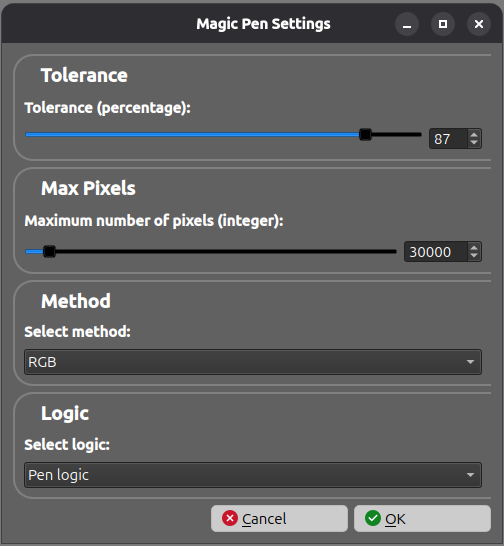
| Parameter | Range / Options | Description |
|---|---|---|
| Tolerance | 0 – 100 (%) | How similar a pixel’s color must be to the clicked color to be included. A higher tolerance includes a wider range of colors. |
| Max Pixels | 5000 – 500000 | The maximum number of pixels the fill can color, to keep the operation bounded. |
| Method | RGB, HSV | The color space used to compare colors. RGB compares raw color channels; HSV compares hue/saturation/value. |
| Logic | Pen logic, All color logic | Pen logic grows the selection from the clicked point, keeping only the connected region. All color logic selects every pixel of a similar color across the whole image. |