CamVid
The CamVid (Cambridge-Driving Labeled Video Database) contains 701 images of urban driving scenes extracted from video sequences, with RGB color-coded segmentation masks across 32 semantic classes.
After downloading, the dataset has the following structure:
train/            369 .png images
train_labels/     369 .png masks  (suffix _L, e.g. 0001TP_009210_L.png)
val/              100 .png images
val_labels/       100 .png masks
test/             232 .png images
test_labels/      232 .png masks
class_dict.csv    class names and RGB color codes
Images are 960×720 pixels. Each mask is an RGB PNG file with the same name as its image plus the _L suffix. The class-to-color mapping is defined in class_dict.csv:
| Class | R | G | B |
|---|---|---|---|
| Animal | 64 | 128 | 64 |
| Archway | 192 | 0 | 128 |
| Bicyclist | 0 | 128 | 192 |
| Bridge | 0 | 128 | 64 |
| Building | 128 | 0 | 0 |
| Car | 64 | 0 | 128 |
| CartLuggagePram | 64 | 0 | 192 |
| Child | 192 | 128 | 64 |
| Column_Pole | 192 | 192 | 128 |
| Fence | 64 | 64 | 128 |
| LaneMkgsDriv | 128 | 0 | 192 |
| LaneMkgsNonDriv | 192 | 0 | 64 |
| Misc_Text | 128 | 128 | 64 |
| MotorcycleScooter | 192 | 0 | 192 |
| OtherMoving | 128 | 64 | 64 |
| ParkingBlock | 64 | 192 | 128 |
| Pedestrian | 64 | 64 | 0 |
| Road | 128 | 64 | 128 |
| RoadShoulder | 128 | 128 | 192 |
| Sidewalk | 0 | 0 | 192 |
| SignSymbol | 192 | 128 | 128 |
| Sky | 128 | 128 | 128 |
| SUVPickupTruck | 64 | 128 | 192 |
| TrafficCone | 0 | 0 | 64 |
| TrafficLight | 0 | 64 | 64 |
| Train | 192 | 64 | 128 |
| Tree | 128 | 128 | 0 |
| Truck_Bus | 192 | 128 | 192 |
| Tunnel | 64 | 0 | 64 |
| VegetationMisc | 192 | 192 | 0 |
| Void | 0 | 0 | 0 |
| Wall | 64 | 192 | 0 |
Image Import
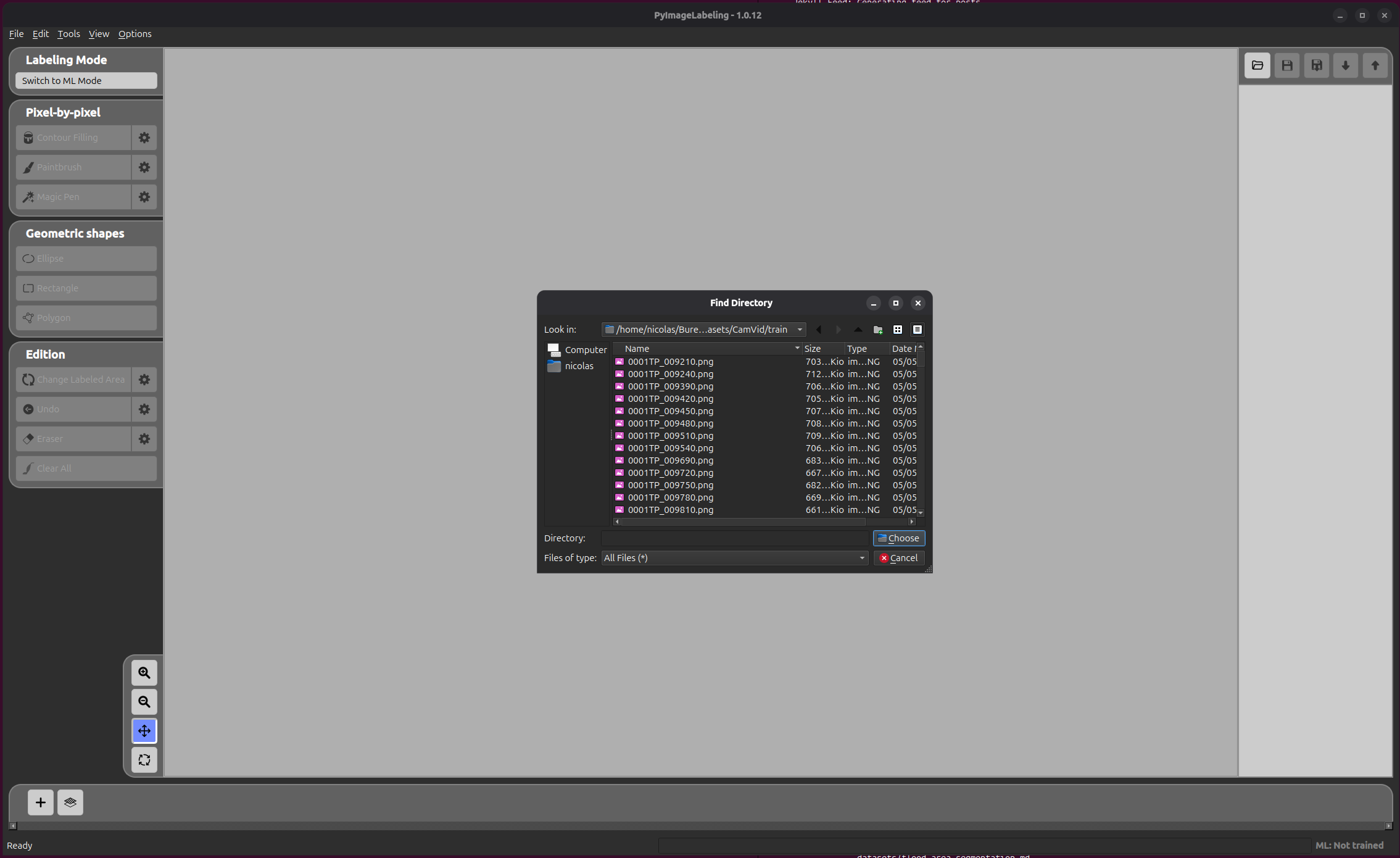
Click the open folder button (  ) to open the folder selection dialog, then navigate to the
 train/ folder of the dataset and click Choose.
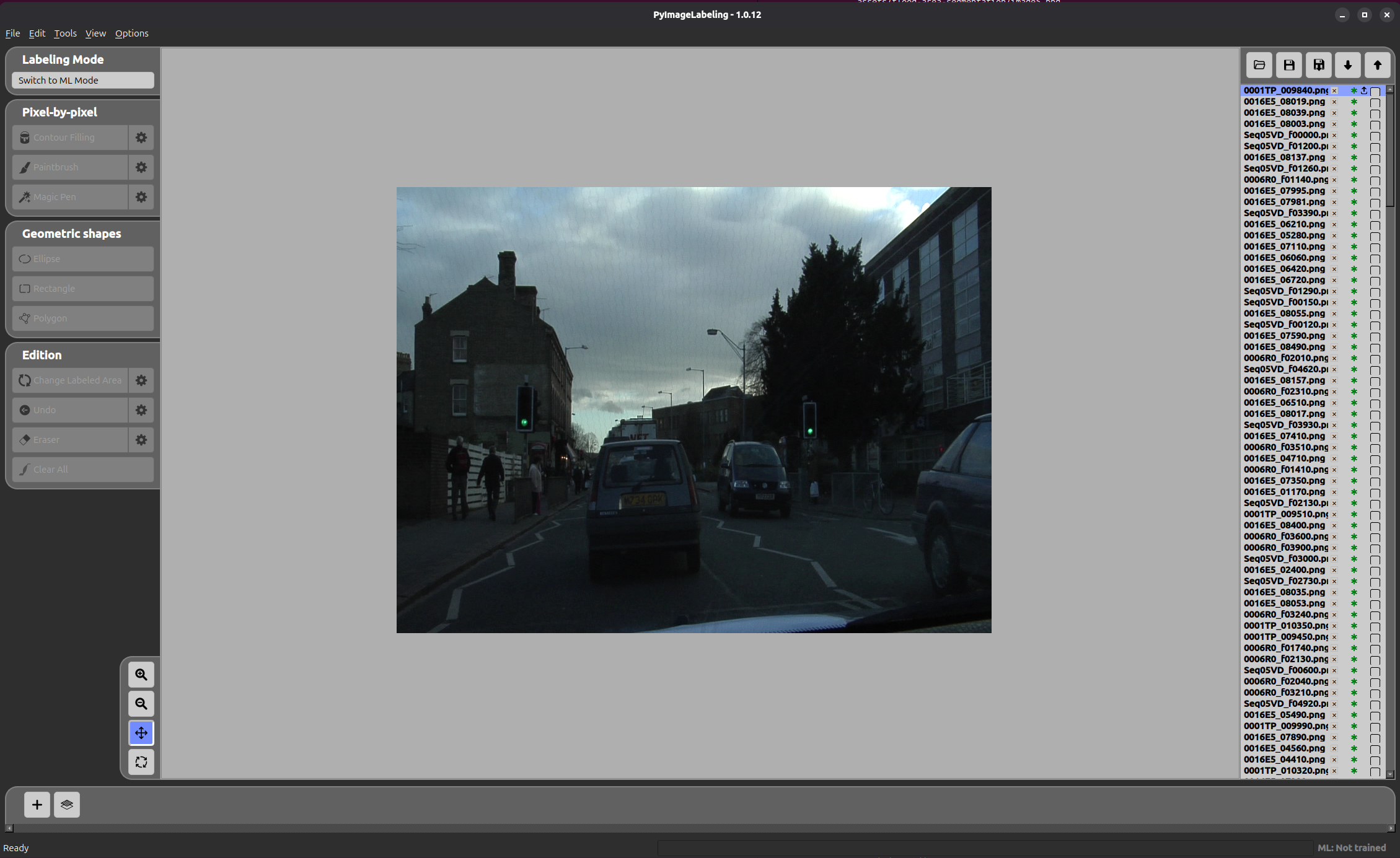
PyImageLabeling loads all images from the folder and displays them in the panel.
Annotation Import
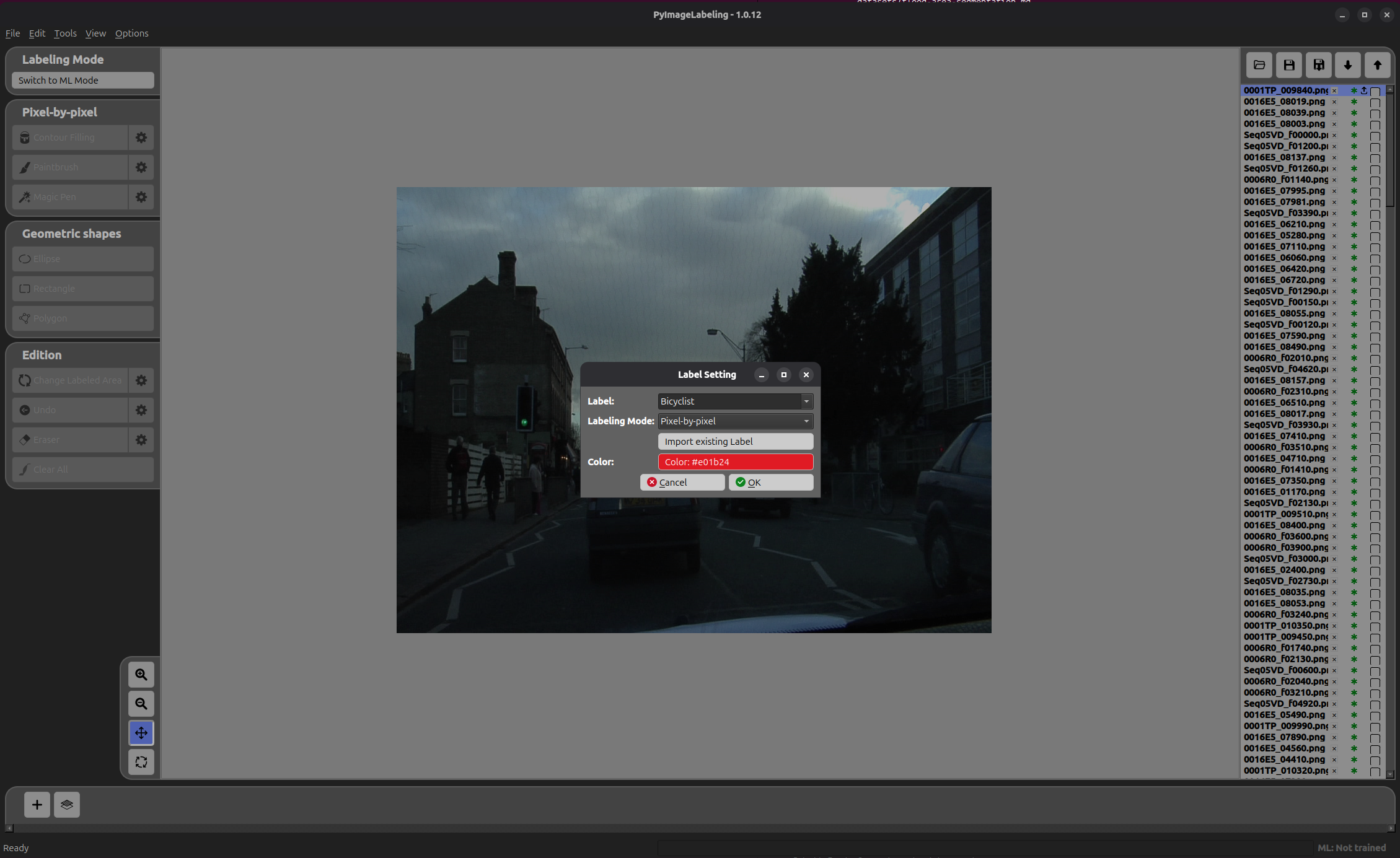
Click the add label button (  ) to open the Label Setting form. Fill in the label name (e.g.
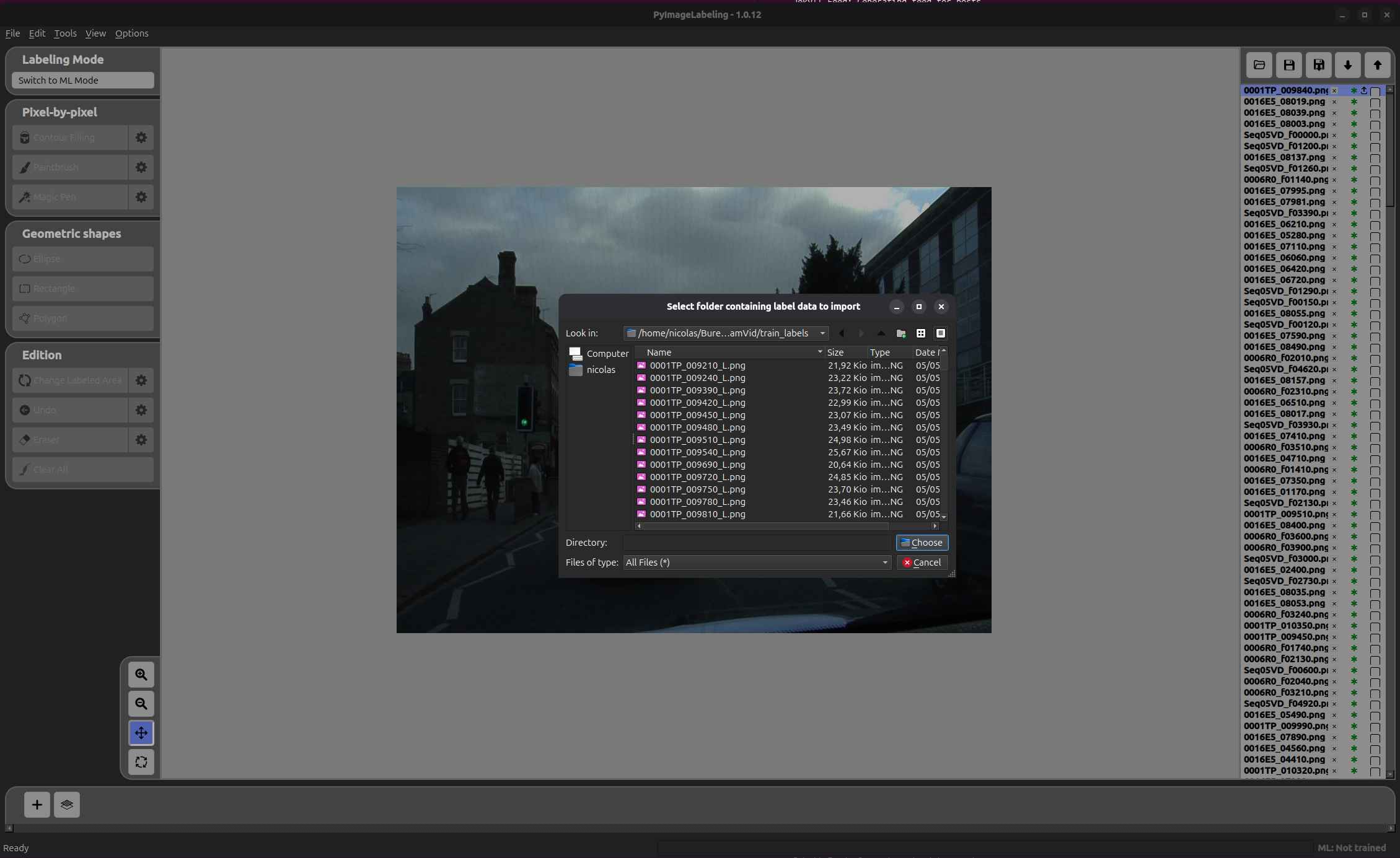
 Bicyclist), then click Import Existing Label to select the annotations folder.
Navigate to the train_labels/ folder of the dataset and click Choose.
The Annotation Import Form then appears to configure how the masks should be interpreted.
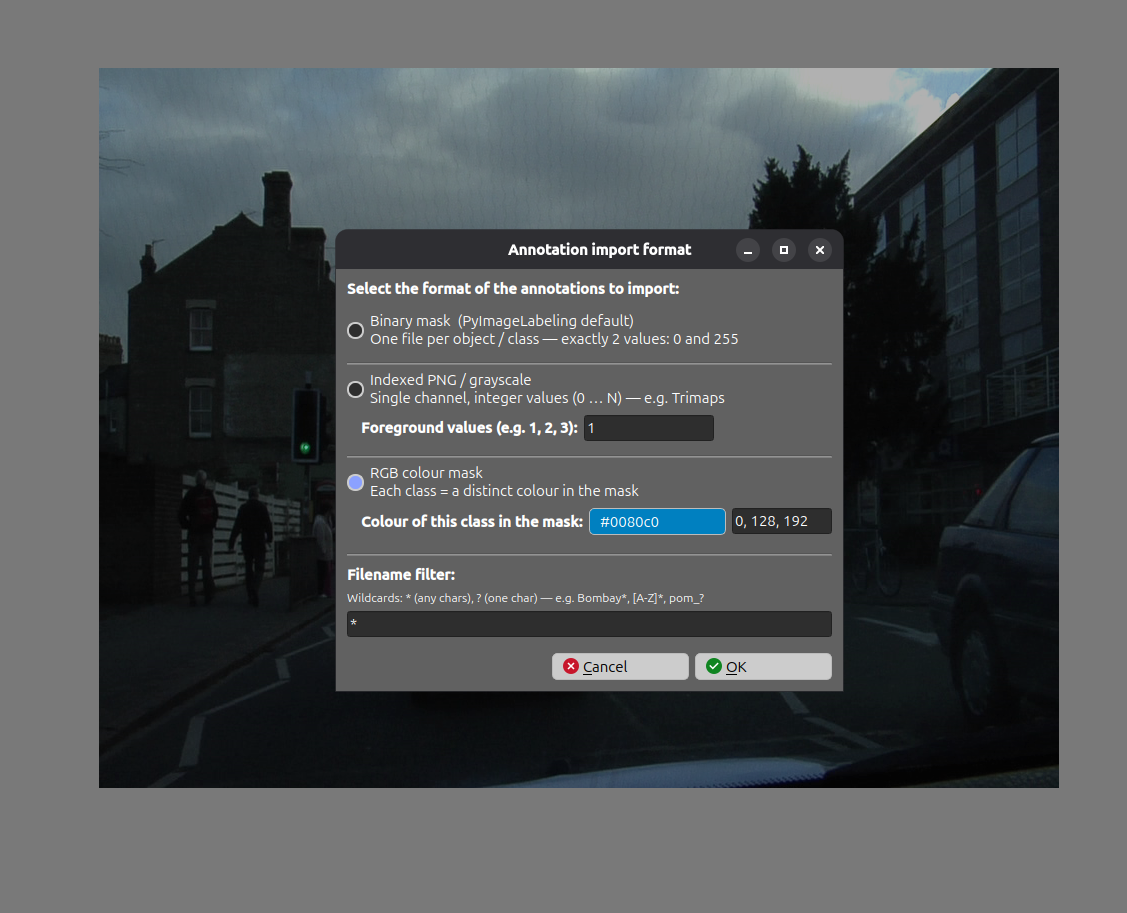
- Format — select RGB colour mask since each class is encoded as a distinct RGB color in the mask.
- Colour of this class in the mask — set to
0, 128, 192, which corresponds to the Bicyclist class in CamVid.
Click OK to confirm.
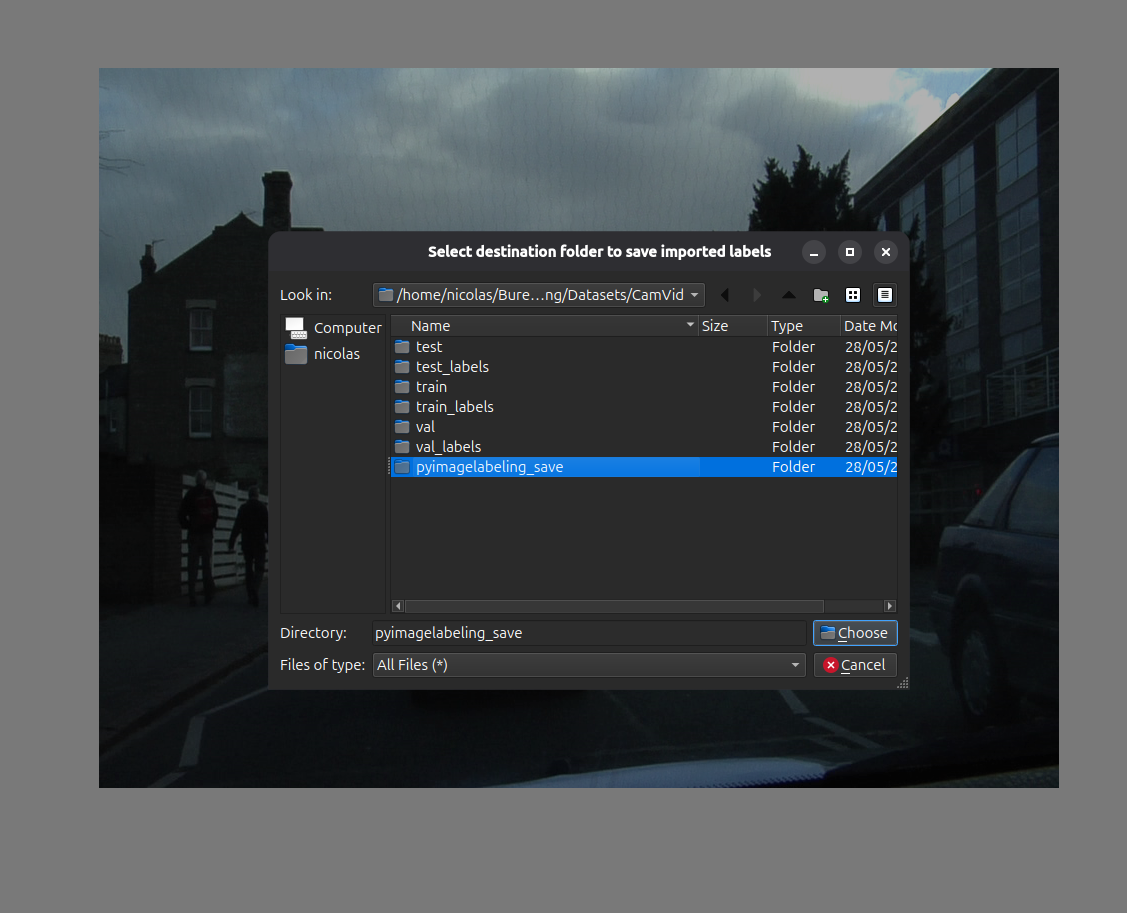
A final dialog asks for the destination folder where PyImageLabeling will save its annotation files. Select the desired folder and click Choose.
Finally, click OK in the Label Setting form to complete the import. Repeat the operation for each class you want to label.
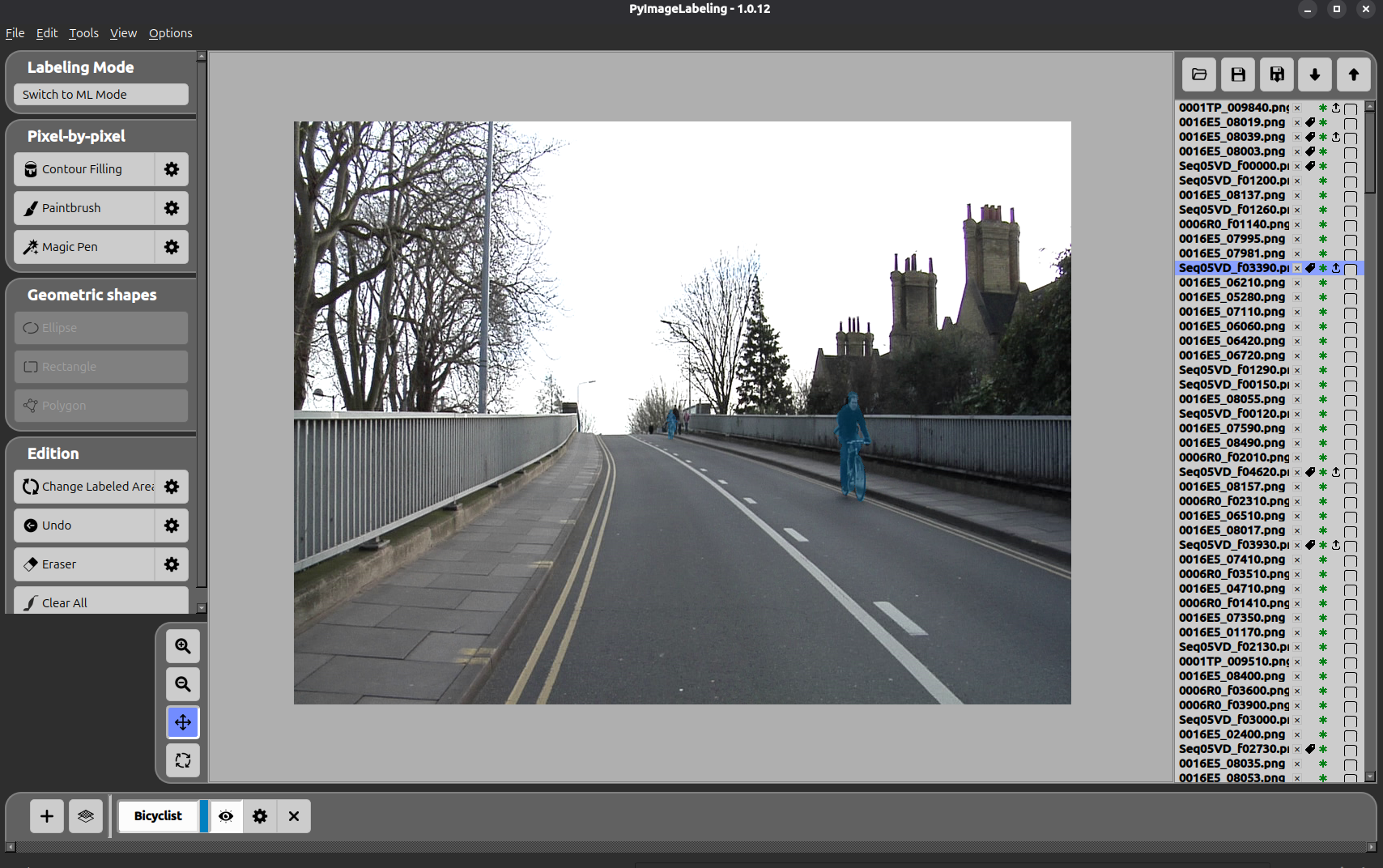
The result is shown below — bicyclists are fully labelled with their annotation mask applied.