Geometric Shapes
Geometric shape tools label regions by drawing parametric shapes rather than painting pixels. They are well suited to objects with regular outlines. The Geometric shapes section of the labeling bar provides three tools.
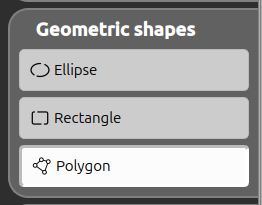
| Icon | Tool | Shortcut | Description |
|---|---|---|---|
 | Ellipse | L | Draw an elliptical shape by dragging from one corner to the opposite one. |
 | Rectangle | R | Draw a rectangular shape by dragging from one corner to the opposite one. |
 | Polygon | P | Draw a free-form polygon by clicking each vertex in turn. |
The shapes are drawn in the active label’s color. Once created, a shape can be selected (and then deleted, or moved to another label with Change Labeled Area).
The outline thickness of geometric shapes is not a per-tool setting: it is configured per label in the Label Setting dialog when the label is in geometric mode. See Label Bar.
Ellipse
Press the mouse button and drag: a preview ellipse is shown while you move, inscribed in the rectangle between the first click and the current position. Release to finalize. Shapes smaller than a few pixels are discarded.
Rectangle
Press the mouse button and drag from one corner to the opposite one: a preview rectangle follows the mouse. Release to finalize. Shapes smaller than a few pixels are discarded.
Polygon
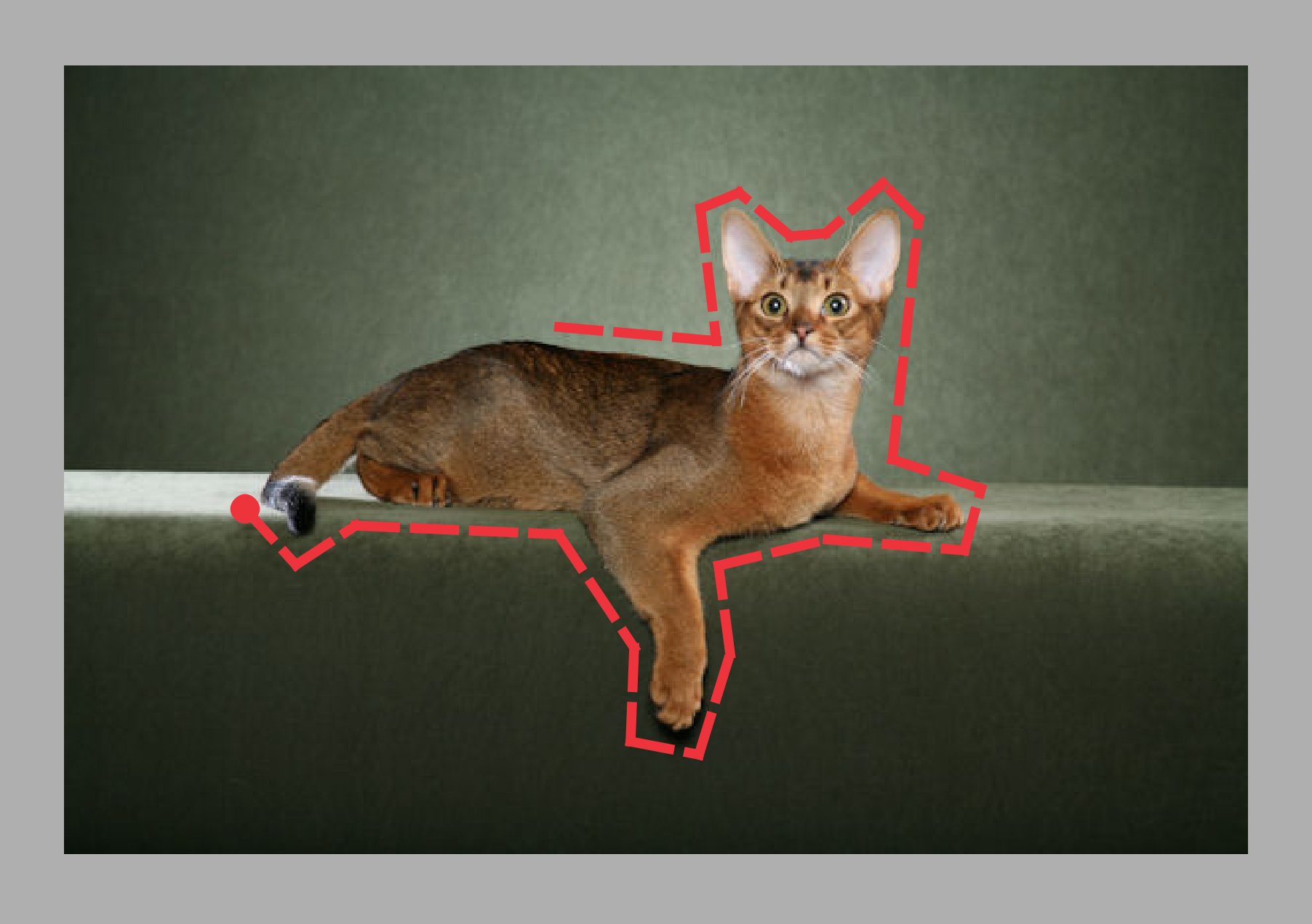
Click once for each vertex of the polygon — a dashed edge is added between successive points. To close the polygon, click again near the first point (marked by a dot); the polygon needs at least three points to be closed. The shape is then filled with the active label’s color.