Labeling Mode
Labeling Mode is where you draw the annotation masks. It offers two families of tools — Pixel-by-Pixel and Geometric Shapes — plus a set of editing tools that apply to whatever you have labeled.
Edition
The Edition section of the labeling bar groups the tools used to edit existing labels. Each tool (except Clear All) has its own settings dialog (the gear button next to the tool).
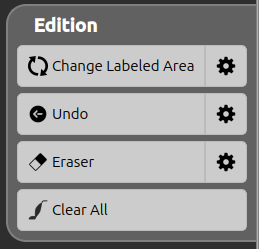
| Icon | Tool | Shortcut | Description |
|---|---|---|---|
 | Change Labeled Area | C | Move an already-labeled area from its current label to a chosen target label. |
 | Undo | Ctrl+Z | Undo the last drawing action on the active label. |
 | Eraser | E | Erase parts of the active label’s mask. |
 | Clear All | Ctrl+Shift+C | Clear the entire mask of the active label. |
Change Labeled Area
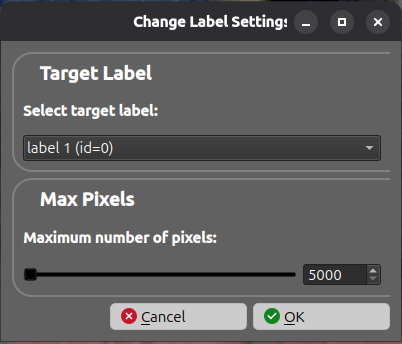
This tool re-assigns an already-labeled area to a different label. Click on a labeled area (or select a geometric shape): the connected region is moved from its current label to the target label, taking the target label’s color. For pixel masks it uses a flood-fill bounded by the Max Pixels setting.
| Parameter | Range / Options | Description |
|---|---|---|
| Target Label | any existing label | The label the clicked area will be moved to. |
| Max Pixels | 5000 – 500000 | The maximum number of pixels the flood-fill can move, to keep the operation bounded. |
Undo
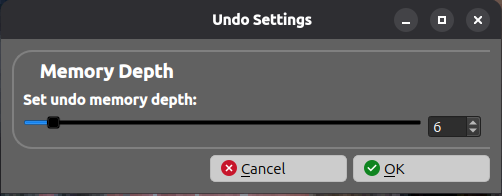
Undo reverts the last drawing action on the active label. The number of actions that can be undone is bounded by the undo memory depth.
| Parameter | Range | Description |
|---|---|---|
| Memory Depth | 0 – 100 | How many successive actions are kept in memory and can be undone. A higher depth uses more memory. |
Eraser
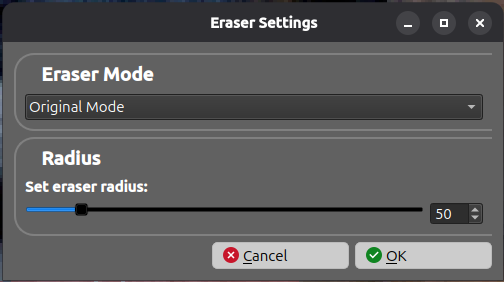
The Eraser removes parts of the active label’s mask. It offers three modes, selected in the settings dialog:
- Original Mode — erase freehand within a circular brush of a given radius, only on the active label.
- Absolute Mode — same brush, but erases any label within the radius, not just the active one.
- Intelligent Mode — erase based on color: keep a chosen color and erase the rest, within a color tolerance, with an optional interactive dynamic adjustment of the pixels to keep.
| Parameter | Range / Options | Description |
|---|---|---|
| Eraser Mode | Original, Absolute, Intelligent | The erasing strategy (see above). |
| Radius | 2 – image size (pixels) | The size of the eraser brush (Original and Absolute modes). |
| Color Tolerance | 0 – 255 | (Intelligent mode) How close a pixel’s color must be to the kept color to be preserved. |
| Color to Keep | color picker | (Intelligent mode) The color that is preserved; other colors within the shape are erased. |
| Dynamic Adjustment | on / off | (Intelligent mode) When enabled, interactively adjust which pixels to keep after clicking on a shape. |
Clear All
Clear All removes the entire mask of the active label on the current image. A confirmation is requested before clearing, and the Undo history is reset afterwards. This tool has no settings.